


Upgrade Your Toyota with Smart Connectivity
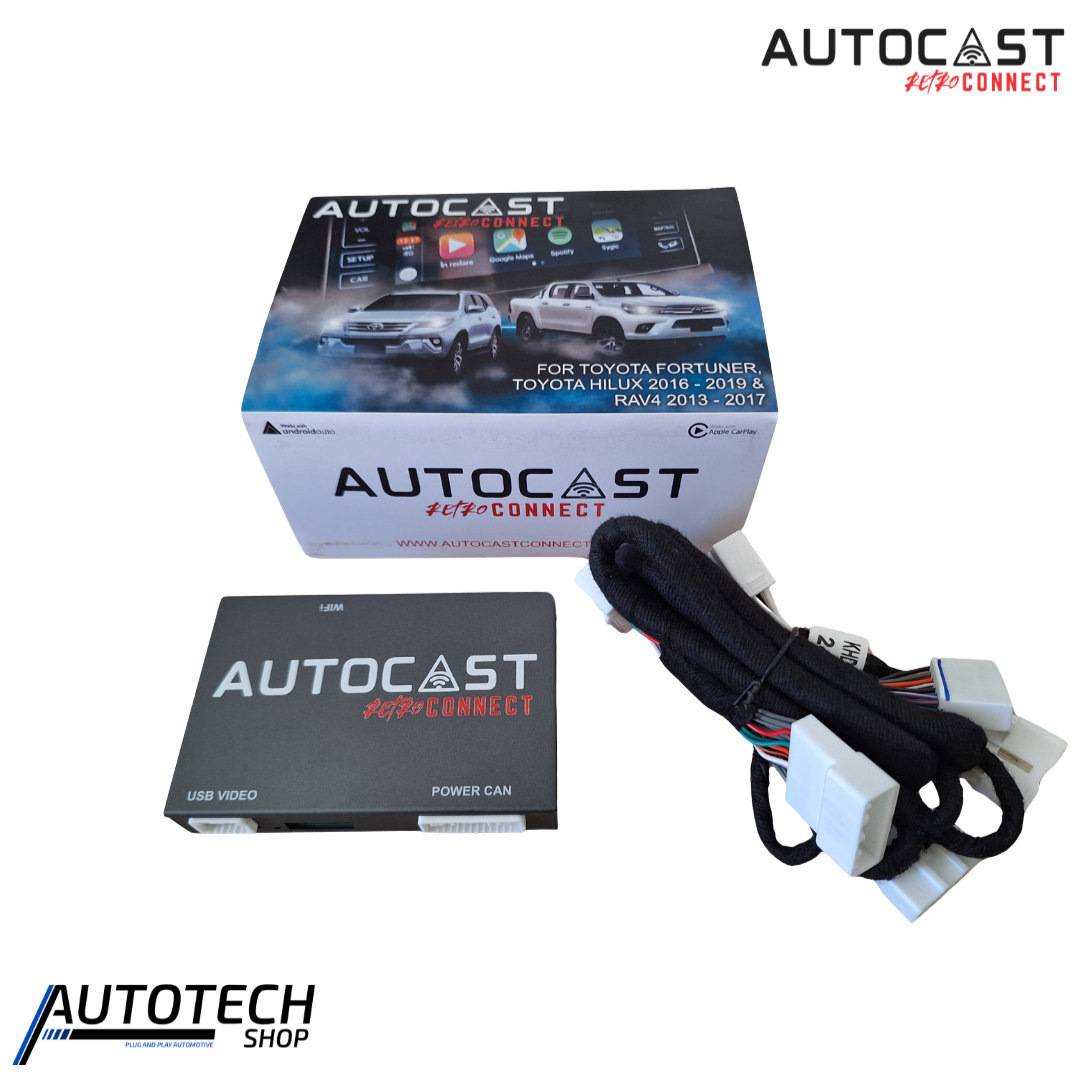
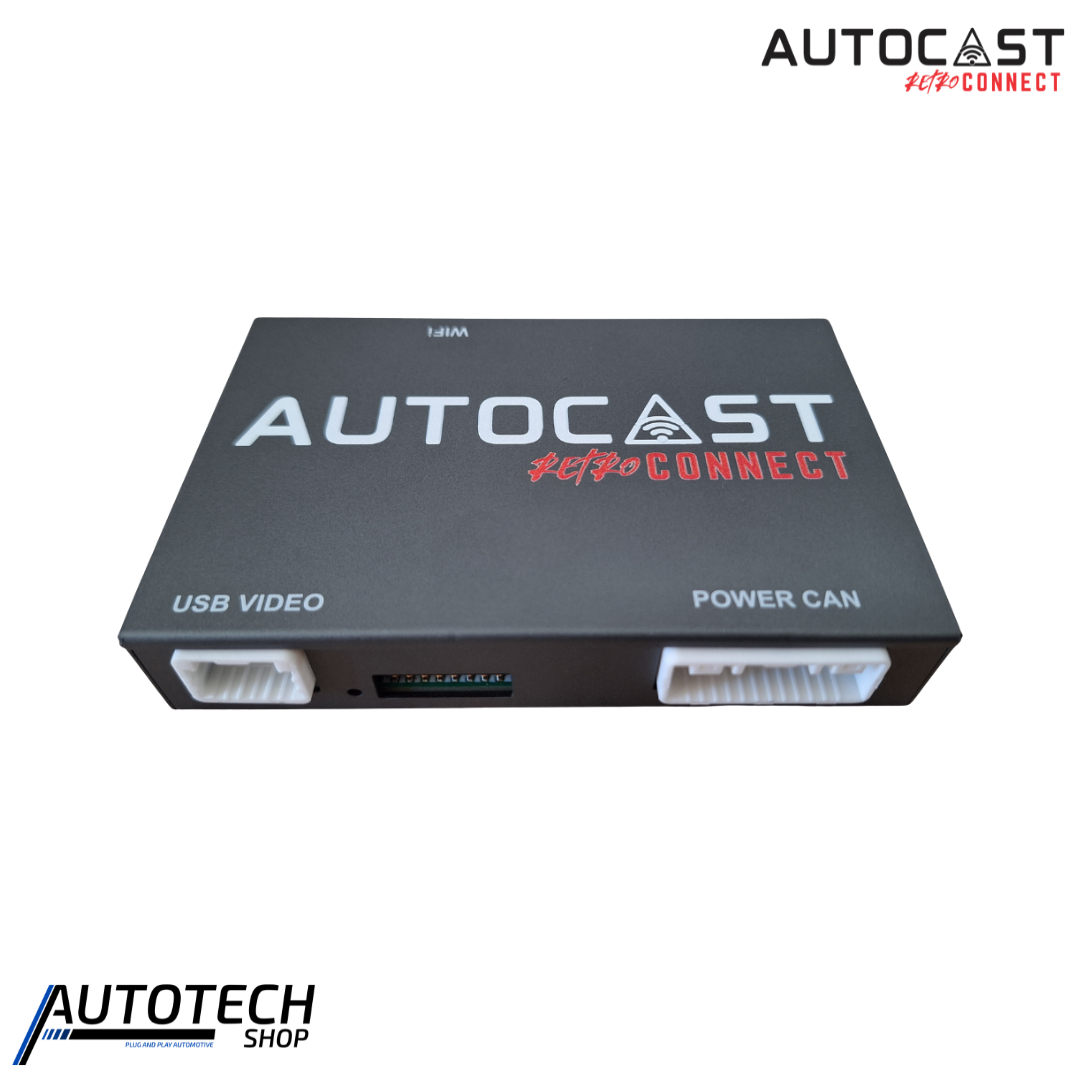
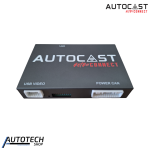
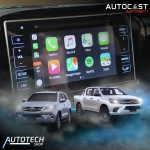
The AutoCast Retro Connect Toyota module gives your compatible Toyota a modern connectivity upgrade without changing the look and feel of your original dashboard. Designed to add Apple CarPlay and Android Auto, this compact module works with your vehicle’s existing controls and factory interface. As a result, you can enjoy easier navigation, music streaming, hands-free communication, and voice control while keeping your Toyota’s original style.
Compatibility
The AutoCast Retro Connect is compatible with:
- Toyota Fortuner: 2016–2019
- Toyota Hilux: 2016–2019
- Toyota RAV4: 2013–2017
- iPhone: iPhone 6 and newer with iOS 10+
- Android: Android 10+ for wireless connection or Android 6+ for wired connection
Key Features
Apple CarPlay & Android Auto
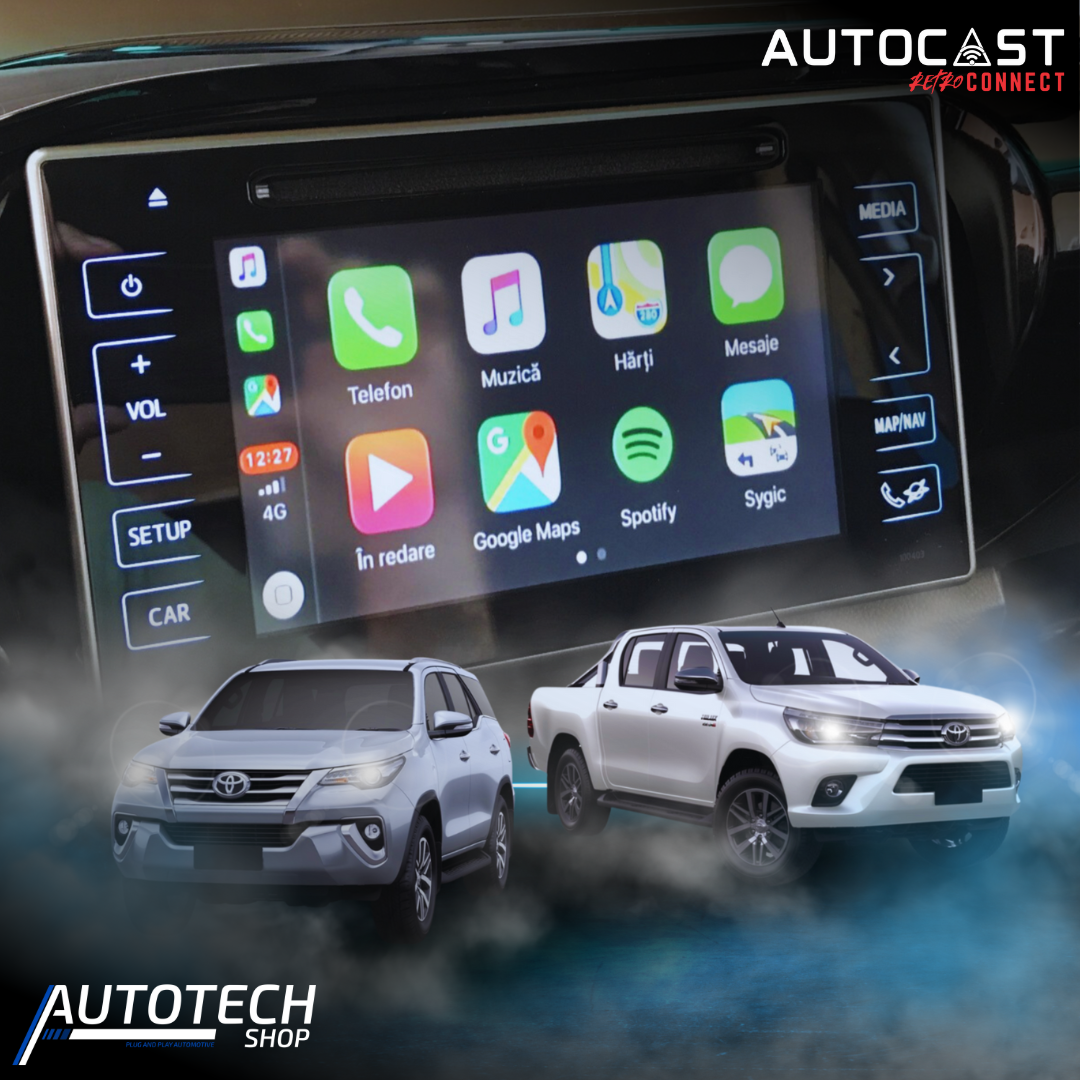
Bring your favourite smartphone features directly to your Toyota’s factory display. Access compatible navigation, music, messaging, and voice assistant apps from your existing system.
OEM-Style Integration
The module is designed to work with your Toyota’s original buttons, knobs, microphone, and dashboard interface. Therefore, you can add modern functionality while maintaining the familiar factory controls.
Wireless Smartphone Connectivity
Connect your compatible smartphone wirelessly for convenient access to CarPlay and Android Auto. Once paired, the system can connect automatically when you start your vehicle.
Plug-and-Play Installation
The AutoCast Retro Connect is designed for a straightforward installation without bulky aftermarket equipment. This makes it a practical upgrade for drivers who want modern connectivity while retaining their vehicle’s original appearance.
OTA Software Updates
Over-the-air updates help keep the system current, allowing you to maintain reliable performance and connectivity without regularly replacing the hardware.
Fast & Responsive Performance
Enjoy smooth navigation, audio playback, app control, and smartphone connectivity with minimal delay. Whether you’re commuting, travelling, or running errands, the system helps keep essential features within easy reach.
Compatible Apps
With Apple CarPlay and Android Auto, you can access a range of compatible smartphone applications, including:
- Navigation: Google Maps, Apple Maps, and Waze
- Music & Media: Spotify, Apple Music, YouTube Music, and Audible
- Messaging: WhatsApp, Messages, and Facebook Messenger
- Podcasts: Apple Podcasts and Pocket Casts
- Voice Assistants: Siri and Google Assistant
Why Choose AutoCast Retro Connect?
The AutoCast Retro Connect Toyota upgrade combines your vehicle’s original factory design with modern smartphone connectivity. Instead of replacing your existing system with a bulky aftermarket unit, you can retain your familiar dashboard controls while gaining access to useful CarPlay and Android Auto features.
Furthermore, the system makes everyday driving more convenient. Use navigation to find your destination, stream your favourite music, respond to messages, or use voice commands while keeping your attention focused on the road.
If you want to modernise your compatible Toyota without losing its original appearance, AutoCast Retro Connect offers a practical solution. Upgrade your Toyota’s connectivity and enjoy a smarter, more convenient driving experience.
Watch the Product Demo
See the AutoCast Retro Connect in action and discover how it integrates with your Toyota’s existing system.
https://youtube.com/shorts/7N9gPqdSrTQ?feature=share
Installation Guide
- Ensure your vehicle is parked on a flat surface and the ignition is off.
- Disconnect the negative battery terminal before beginning installation.
- Handle all wiring and connectors with care to avoid damage to vehicle electronics.
- If you are not confident performing the installation, professional installation is recommended.
- Compatible only with vehicles listed below; verify fitment before installation.
Tools You May Need
- None — plug-and-play design
- Optional: Trim removal tools (plastic recommended)
- Optional: Cable ties for neat cable management
Compatibility
- Toyota Fortuner / Hilux 2016 – 2019
- Toyota RAV4 2013 – 2017
- iPhone 6+ (iOS 10+)
- Android 10+ (wireless connection) / Android 6+ (wired connection)
Installation Steps
1. Preparation
- Park your vehicle on a flat surface and turn off the ignition.
- Disconnect the negative battery terminal.
- Confirm your vehicle model and that it has the required factory buttons and dash interface.
2. Connect Retro Connect Module
- Locate the USB port or interface harness used for your existing CarPlay/Android Auto.
- Plug the Retro Connect module into the USB port or harness.
- Ensure all connectors are fully seated — a snug connection is required for proper operation.
3. Pair Your Device
- Turn on the vehicle.
- On your smartphone, enable Bluetooth and Wi-Fi (for wireless connection).
- Follow the on-screen prompts on your CarPlay or Android Auto display to pair your device.
- The first connection may take up to 2 minutes; subsequent connections will auto-connect.
4. Test & Use
- Verify CarPlay or Android Auto launches automatically.
- Confirm that all factory buttons, knobs, and microphones remain functional.
- Test navigation, media playback, messaging, and voice assistant functionality.
Care & Maintenance
OTA updates will keep your system current; ensure your device is connected regularly.
Keep the module and USB port free of dust and debris.
Avoid exposure to moisture or excessive heat.
Handle connectors gently when plugging or unplugging the module.